The Rise of AI-Generated CAD Files
Designers, engineers, and hobbyists are increasingly using AI tools — from ChatGPT code output to dedicated generative design platforms — to create 3D model files quickly. You type a description, provide some dimensions, and out comes an STL or STEP file, ready to print. Sounds perfect, right?
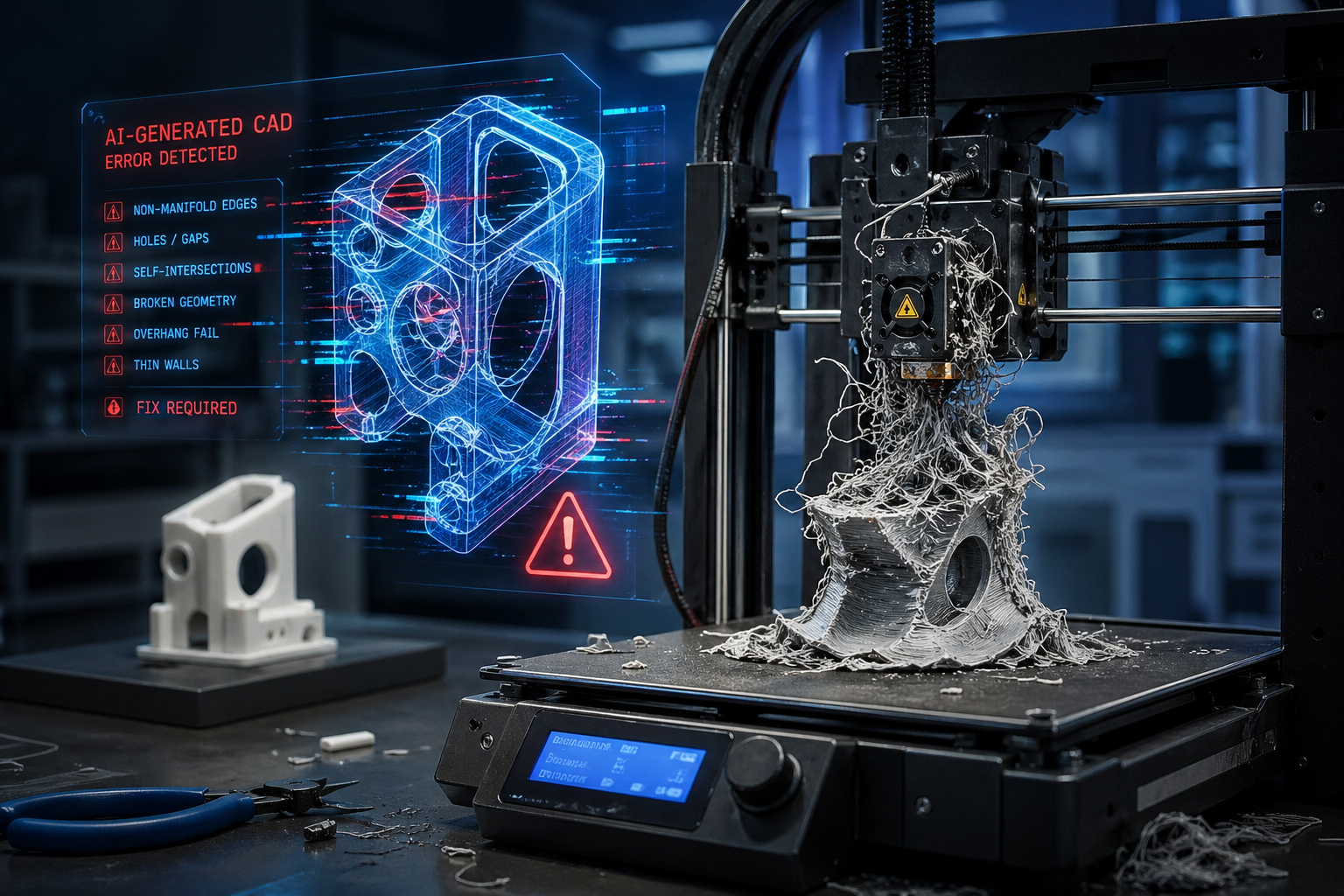
The reality is that most AI-generated CAD files contain geometry errors that make them unprintable or unreliable. The AI produces a file that looks correct on screen but fails the moment you try to slice it or send it to your printer. This is not a niche problem — it affects beginners and professionals alike.
Why Do AI-Generated CAD Files Have Errors?
AI tools are trained on patterns and data — they are excellent at producing something that looks geometrically correct. But they do not understand the strict mathematical rules that define a printable 3D mesh. A 3D printer needs a 'watertight' model — every surface must be perfectly closed, every normal pointing outward, every edge connected to exactly two faces. AI-generated files routinely violate these rules.
Here are the most common errors found in AI-generated CAD files:
1. Open Surfaces / Holes in the Mesh
The model has gaps in its surface, so it is not a closed solid. Slicers cannot determine what is 'inside' the object, causing missing walls or failed prints.
2. Flipped Normals
Some triangles in the mesh face the wrong direction (inward instead of outward), causing slicer software to misread the geometry and produce hollow sections.
3. Non-Manifold Geometry
Edges shared by more than two faces, or faces that meet at a single point — structures that are geometrically impossible to print. This is one of the hardest errors to fix automatically.
4. Intersecting / Overlapping Bodies
Two solid volumes that overlap each other without being properly merged into one unified solid. This causes strange internal voids and wastes material.
5. Incorrect Scale or Units
The AI outputs the file in millimetres when you expected centimetres, or vice versa — resulting in a model that prints at 10x the intended size.
6. Degenerate Triangles
Triangles with near-zero area that add noise to the mesh, confuse slicer algorithms, and increase file size unnecessarily.
What Happens When You Try to Print an Errorful File?
If you have ever sent a file to your slicer only to see it produce a mess of missing walls, strange internal structures, or simply refuse to generate supports — you have almost certainly encountered these errors. The table below shows the typical consequences:
Error Type
Print Outcome
Open Mesh / Holes
Slicer shows missing walls
Print fails or collapses
Flipped Normals
Model looks inside-out in preview
Hollow sections, bad wall thickness
Non-Manifold Geometry
Slicer throws an error
Incomplete or broken print
Intersecting Bodies
Strange internal voids in preview
Wasted material, structural weakness
Clean, solid preview in all slicers
• Automated repair tools often close holes incorrectly, creating flat patches that distort the intended shape.
No replies yet
Start the discussion
Be the first to ask a follow-up question or add practical insight about this topic.